
Restream your webinars to LinkedIn, Facebook, YouTube and 30+ other platforms

Bryan
12 de mayo de 2022 - 7 min - Actualizado: 08 de octubre de 2026
Key takeaways:
Combining WebinarGeek with the third-party tool Restream and the free streaming software OBS lets you broadcast one webinar to 30+ platforms at once, far more than the two destinations available with WebinarGeek's built-in restreaming.
The setup takes five steps: create a Restream account, connect it to OBS, add your social channels, add WebinarGeek as a custom RTMP channel and start the OBS virtual camera.
This route needs a paid Restream plan and the WebinarGeek Premium plan with the RTMP add-on (or Enterprise). If one or two channels are enough, the built-in restream feature is quicker to set up.
Your webinar audience is rarely in one place. Some people follow you on LinkedIn, others watch everything on YouTube, and a few might only ever see you in a Facebook group or on a niche streaming platform. If you want to reach all of them with a single live session, you need a way to send one stream to many destinations at the same time.
That's called multistreaming, and it's exactly what Restream is built for. Paired with WebinarGeek and OBS, it lets you host your webinar as usual while it also goes live on dozens of social channels.
In this guide, we walk you through the full setup, step by step. And if you only need one or two channels, we'll also show you a quicker option that's built right into WebinarGeek.
What is multistreaming?
Multistreaming means distributing one live stream from a single source to several platforms at once. For example, you host a webinar in WebinarGeek and stream it simultaneously to LinkedIn and Facebook, so both audiences can watch live without you running the session twice.
Your registered attendees still join the WebinarGeek webinar room, with all the interaction and follow-up that comes with it. Your social audiences watch on the platform they already use.
What is Restream?
Restream is a third-party multistreaming service that sends one stream to more than 30 platforms at the same time, including YouTube, LinkedIn, Facebook, Twitch and X. You add your channels once in the Restream dashboard and then switch them on or off for each stream.
Restream offers a free plan to get started. To connect it to WebinarGeek, though, you need its custom RTMP option, which requires a paid Restream subscription.
What you need before you start
Make sure you have these in place before you set things up:
A Restream account. The custom RTMP channel requires a paid plan (Standard or higher).
OBS Studio. This free streaming software sits between your camera and Restream. You can download OBS here. New to OBS? Our guide to optimizing your webcam with OBS is a good place to start.
RTMP access in WebinarGeek. You need the Premium plan with the RTMP add-on, or an Enterprise plan.
Events on LinkedIn or Facebook, if you plan to stream there. Creating the live event in advance makes sure the stream lands in the right place and lets you promote it upfront.
How to restream your webinar with Restream and OBS
The Help Center article on using Restream for RTMP webinars has screenshots for every step. Here's the overview.
1. Create a Restream account
Go to restream.io, sign up and choose a plan. If you want to connect WebinarGeek as a destination, pick a plan that includes custom RTMP channels.
2. Connect Restream to OBS
Open OBS and go to Settings, then Stream. Under Service, select Restream.io and choose Connect Account. Log in with your Restream details, keep the server on Autodetect and click OK. OBS will now send its output to Restream whenever you start streaming.
3. Add your social channels in Restream
In your Restream dashboard, choose the option to set up for OBS, Zoom and similar tools. Then click Add Channel under Destinations, pick the platforms you want, log in to each one and allow Restream access. Every channel gets a toggle, so check that the ones you want to stream to are switched on.
Don't skip the stream title in Restream. Without one, the stream won't load.
4. Add WebinarGeek as a custom RTMP channel
This is the step that brings your webinar room into the mix. In Restream, click Add Channel and choose Custom RTMP. Paste the RTMP URL and stream key from your webinar in WebinarGeek, select Use authentication, fill in the username and password and click Add Channel.
Once your toggles are on and you're ready to go, check that your webinar has actually started in WebinarGeek. If it hasn't, start it there.
5. Start the OBS virtual camera
In your WebinarGeek live environment, select OBS Virtual Cam as your camera. Then click Start Virtual Camera in OBS. Your webinar is now live in WebinarGeek and on every channel you switched on in Restream.
What social viewers see (and what they don't)
People watching on social media only see what OBS sends out: your camera, your slides and anything else you add as a scene. A few things work differently from the WebinarGeek webinar room:
Chat stays separate. Social viewers can't see messages in the WebinarGeek chat, and comments on LinkedIn or YouTube don't appear in WebinarGeek. Ask a moderator to keep an eye on the social comments too.
Interactions aren't visible. Polls, calls to action and other webinar interactions only show up for attendees in WebinarGeek.
Video injections don't carry over. If you want to play a video, add it as a separate scene in OBS instead.
Because of this, it helps to give social viewers one clear next step, such as registering for the full session or watching the replay.
Prefer a simpler setup? Use WebinarGeek's built-in restreaming
Restream and OBS give you the widest reach, but they also mean extra tools, extra subscriptions and a few more things to check before you go live. If you only need one or two channels, WebinarGeek's own restream feature is much quicker.
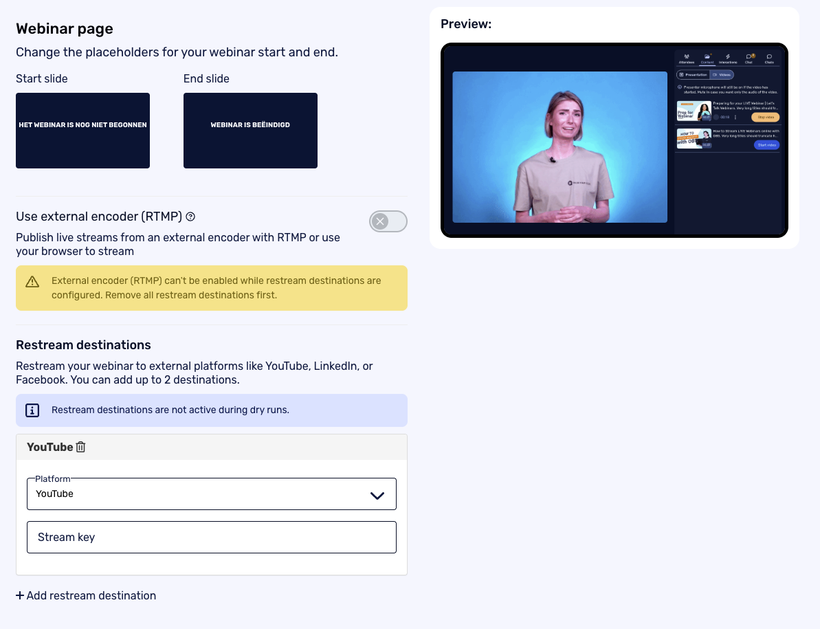
You set it up directly in your webinar: click Edit webinar, open the Webinar step and go to Restream destinations. Choose YouTube, LinkedIn, Facebook or another RTMP-enabled platform, add the stream key and you're done. No OBS, no separate account, and you broadcast from your browser as usual.
You can add up to two restream destinations per webinar. Keep in mind that restream destinations aren't active during dry runs, so double-check your settings before the live session. For a closer look at when restreaming pays off and which webinars to use it for, read how to reach a bigger webinar audience with restreaming.
Restream with OBS or built-in restreaming: which one should you choose?
Both options let you host your webinar once and reach people beyond your registration page. The difference comes down to how many channels you need and how much setup you're happy to do.
Choose built-in restreaming if you want to reach one or two channels, such as LinkedIn and YouTube, with as little setup as possible. It runs inside WebinarGeek, so there are no extra tools to manage.
Choose Restream with OBS if you want to go live on more than two platforms at once, or on channels beyond the big three. It takes more preparation and paid plans on both sides, but it gives you the biggest possible reach from a single webinar.
Frequently asked questions about restreaming with Restream
Can I stream a WebinarGeek webinar to more than two platforms at once?
Yes. WebinarGeek's built-in restreaming supports up to two destinations, but by connecting WebinarGeek to Restream through OBS and a custom RTMP channel, you can stream to 30+ platforms simultaneously.
Do I need a paid Restream plan?
Restream has a free plan, but connecting WebinarGeek as a custom RTMP channel requires a paid Restream subscription (Standard or higher). On the WebinarGeek side, you need the Premium plan with the RTMP add-on or an Enterprise plan.
Do I need OBS to use Restream with WebinarGeek?
Yes. OBS sends your stream to Restream, and you use the OBS virtual camera as your camera in WebinarGeek. OBS is free to download.
Why isn't my Restream stream loading?
The most common reason is a missing stream title in Restream. Also check that your channel toggles are switched on and that your webinar has started in WebinarGeek.
Frequently asked questions
Which platforms can I reach with Restream?
Restream supports more than 30 platforms, including YouTube, LinkedIn, Facebook, Twitch and X.
Can social media viewers see the WebinarGeek chat and polls?
No. Viewers on social platforms only see what OBS sends out. Chat, polls and calls to action stay inside the WebinarGeek webinar room, so ask a moderator to follow the social comments as well.
Should I create a LinkedIn or Facebook event before I go live?
Yes. Creating the event in advance makes sure your stream goes to the right place and gives you time to promote it to your followers.
When is WebinarGeek's built-in restreaming the better choice?
When one or two channels are enough. Built-in restreaming works straight from the Webinar step in WebinarGeek, without OBS or a Restream account.
Reach more people live. Try WebinarGeek free.
Start free trial