
Start your first webinar!
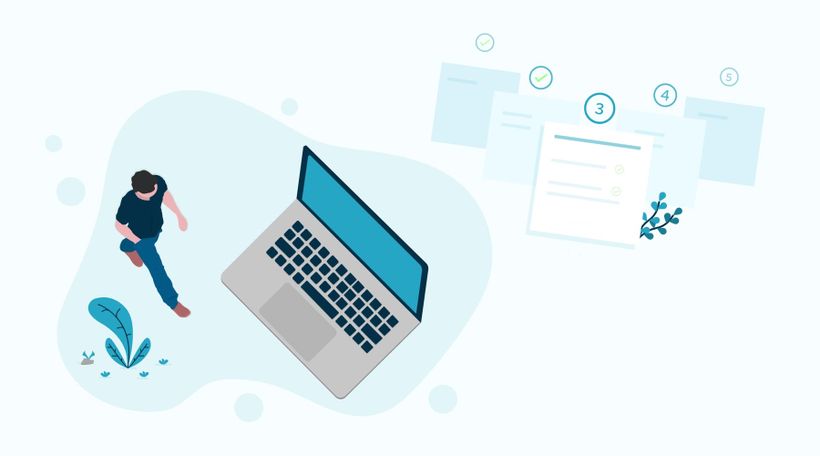
LEARNING GOAL: launch your first webinar independently
What do I need for my first webinar?
To organize a webinar you only need four things:
1. A computer
2. A webcam
3. A headset and/or microphone
4. An internet connection
Any modern computer is enough to give a webinar. One of the requirements is the use of the web browser google chrome when creating a webinar.
How does it work?
WebinarGeek is made in such a way that everyone can give a webinar. It is user-friendly and shows you step by step on how to get started with your first webinar!
1. Start a free trial and create a new webinar
In your home screen, you can press a +new webinar in the top right to start creating your first webinar.
2. Choose your webinar
As we discussed earlier, you can choose between 3 types of webinars. Choose the webinar that best fits your purpose and which makes you feel the most comfortable as a presenter. Do you still find it exciting to present live? Then choose an automated webinar.
3. Choose a suitable title
An important part of creating a webinar is creating a catchy title. You can do this by giving a promise. You must be able to realize this promise. For example: "How to create good content in 5 handy steps". And not "Learn to write the best content in 5 handy steps". The goal is to choose a title that you can make true and which directly benefits people. Make a title that appeals to people and keep your promise!
4. Setting the language
This step speaks for itself. Choose the language of your webinar and tailor it to the target group. The tool adapts the template in your chosen language.
5. Date and time
Choosing a suitable day naturally depends on your target group. When is your target audience online and when do they have time?
In general, the following rule is important when creating a webinar:
Tuesday to Thursday is the best time to organize a webinar
Monday is often a catch-up day
For many people, Friday is a day to start the weekend early
The time for giving a webinar is difficult to determine. This depends on your target group. When you serve a business market, keep in mind, for example, not to give a webinar between 12:00 - 13:00 when most people have lunch. Therefore, think carefully about your target group and when it suits them best.
6. Offer a replay?
In the last step before you create your first webinar, you have the option to choose to make the webinar available for a replay. This is also useful for non-viewers who have registered for the webinar but did not come to watch the webinar.
When the viewer views an on-demand webinar, the interaction is copied from your live webinar. Exactly at the moment that you have activated a live poll, it will also be shown to the viewer during the on-demand webinar and you can respond to it in real-time. When a question is asked during the on-demand webinar, it is automatically forwarded to your mailbox so that you can respond quickly.
This way you keep collecting useful statistics. Plus, you can organize your next webinar even better and generate valuable leads even easier.
When you have made a choice, click on create webinar.
What did I learn?
Create my first webinar
What to look out for when creating my first webinar
Próximos cursos

Moderating a webinar from A to Z
Add moderators and master the live chat with our step-by-step guide.
Master Your Elgato Setup - Complete 3-Part Video Guide
Learn how to build the ultimate Elgato setup in this 3-part video series—unboxing, software setup, and a full real-time walkthrough to boost your streaming game.

5 Best Ways To Find New Webinar Topics
Struggling to find fresh and engaging webinar topics? Look no further! In this video, we dive into the top 5 strategies to spark your creativity and uncover compelling subjects for your next webinar.

11 Webinar Presentation Templates
Give your webinar a fresh look with ready-to-use presentation templates for marketing, training, pitch decks, and product demos.

Optimize your webcam with OBS part 2
Elevate your webcam image quality with OBS! Learn to tweak settings like white balance, gamma, and more for a professional look.
5 Awesome Studio Management Tips
Want to level up your studio management skills? In this video, we share 5 awesome tips to streamline your workflow, boost productivity, and create a more efficient studio environment.
Webinars as a side hustle
Ready for a rewarding side hustle? Discover how to profit from on-demand webinars. Learn to identify your expertise, create compelling content, promote effectively, and activate payments. Your success awaits!

Interactions
Gather relevant information from viewers through the different interactions.

Invite and promote
Publish your webinar and share your webinar with the world and collect interesting data about the participants!

How to stream webinars with Streamlabs Desktop
Learn how to set up and stream webinars like a pro using Streamlabs Desktop! In this first installment, we'll walk you through the foundational steps to master the art of webinar streaming.